 MOSSBACK STUDIO
How to turn a Blockbench model into a sprite sheet
Model and animate once in 3D, then use it as sprites in a 2D game: one row per direction, one column per frame.
Open Turnsprite (free, in the browser)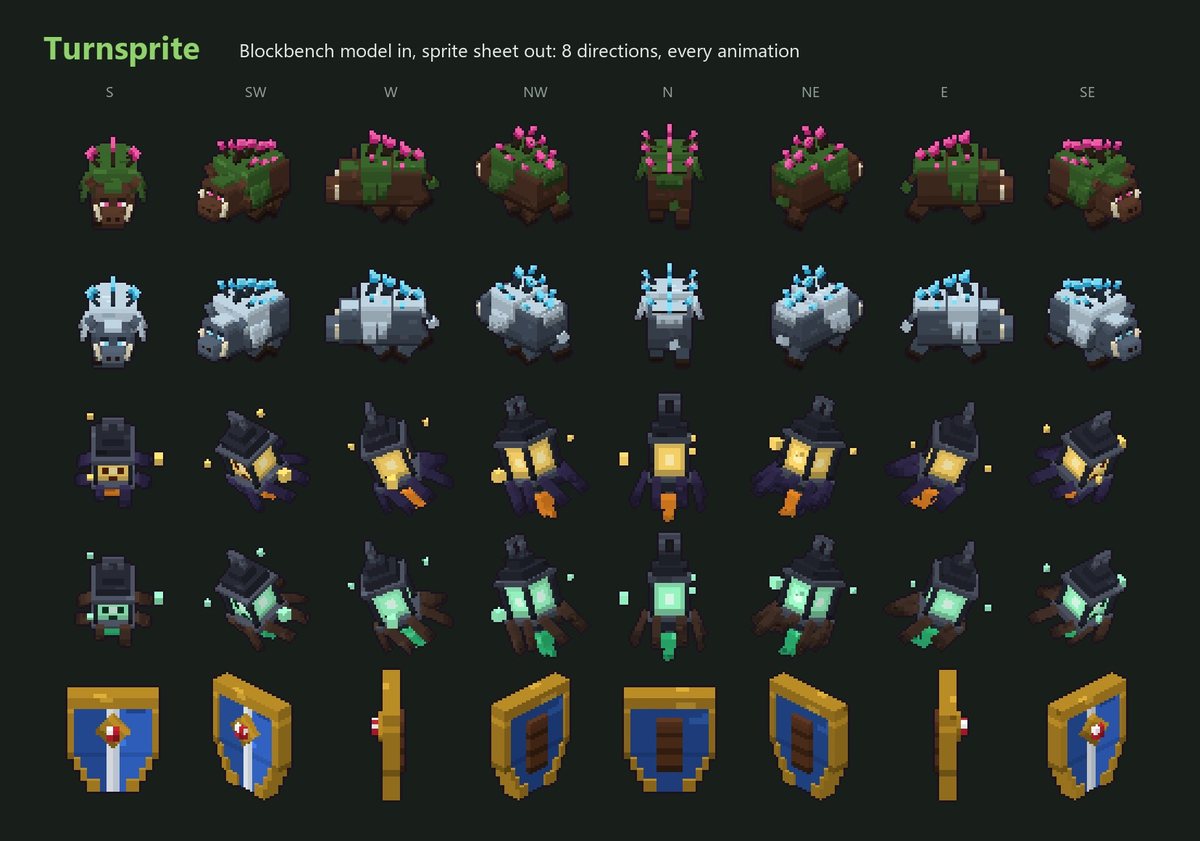
Drawing a walk cycle for four or eight directions is a lot of frames, and every change to the character means drawing them again. With a 3D model you animate it once and render the frames. Blockbench can export screenshots and GIFs, but not a sheet with all directions on one grid, so I made a small tool for it: Turnsprite. It runs in the browser and the model never leaves your computer.
1. Get the model ready in Blockbench
- Save as .bbmodel. That is Blockbench's own project file (File > Save Model). It holds the textures and the animations, so one file is enough.
- The front of the model looks north. That is the side Blockbench marks with the N on the ground grid. If yours looks another way, you can turn it later in the tool, no need to rebuild anything.
- Set looping animations to loop. In the animation's properties, Loop Mode = Loop. The tool then leaves out the last frame, because it is the same as the first, and the cycle plays without a hitch.
- Name the animations the way you want the files named: idle, walk, attack.
2. Open it in Turnsprite
Go to mossbackstudio.com/tools/turnsprite, press Open model or drop the .bbmodel on the page. The sheet is drawn right away with the first animation. If you have no model at hand, Sample loads a boar with five animations.
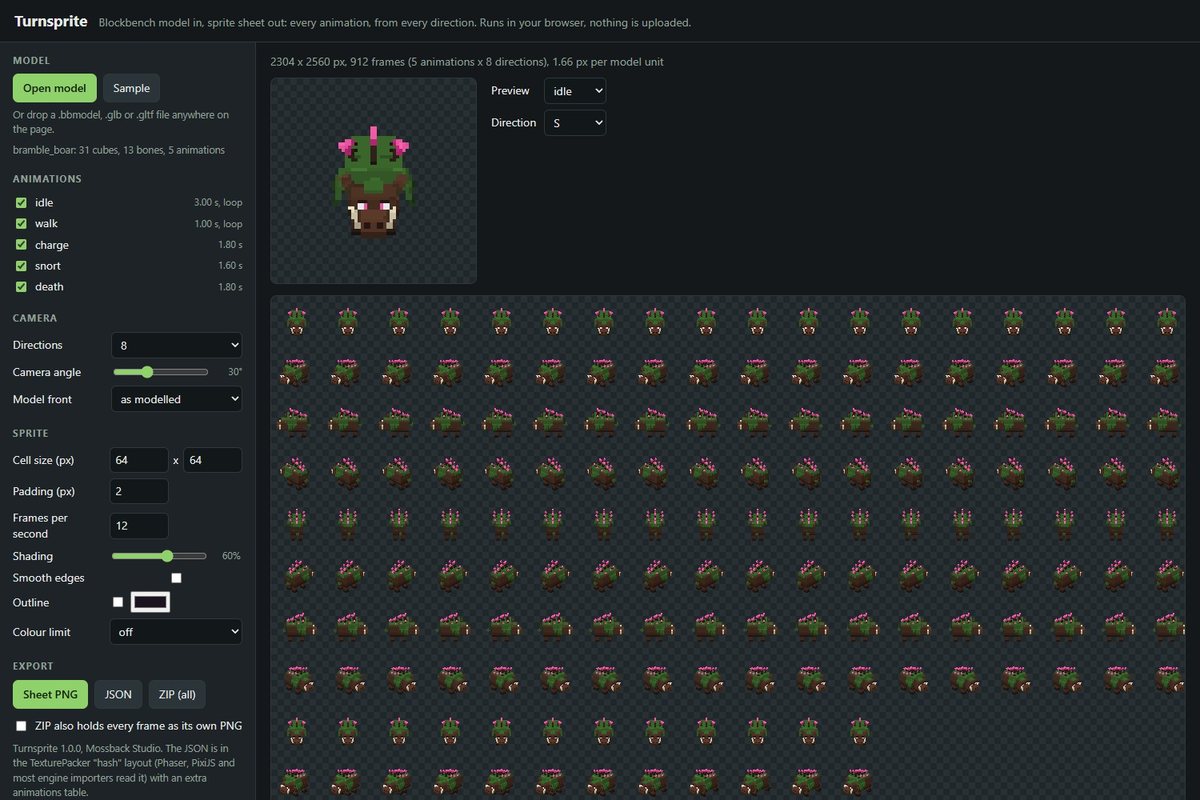
The picture shows the full version with 8 directions and all animations ticked. The free page looks the same with fewer options.
3. Pick the settings
- Directions. 4 is enough for most top-down games (down, left, up, right). 8 adds the diagonals. The first row faces the camera and the next rows turn clockwise: with 4 directions the rows are S, W, N, E, where W means the sprite looks to the left of the screen.
- Camera angle. 0 is straight from the side, which is what a platformer needs. 30 to 45 gives the usual top-down RPG look. 90 is straight from above.
- Cell size. The size of one frame in pixels. For a pixel art look keep it small (48 to 96) and leave smooth edges off. The model is fitted so that no frame gets cut off, and the scale and the pivot are the same in every cell, so the sprite does not jump when it turns.
- Frames per second. How often the animation is sampled. 8 to 12 is plenty for small sprites and keeps the sheet small.
- Shading. 0 % shows the flat texture colours. Higher values add light from the upper left, which helps the shape read at small sizes.
- Model front. If the first row shows the back or a side of the model, turn it here.
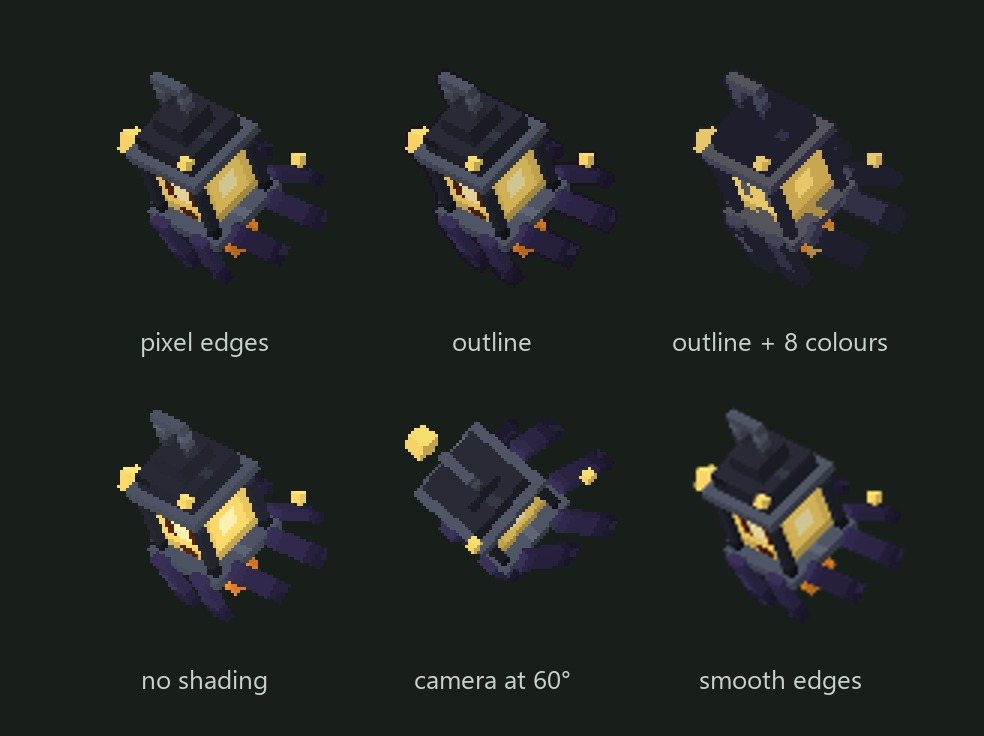
Then press Sheet PNG. The status line tells you the sheet size and the number of frames. You need the number of columns for the next step: sheet width divided by cell width.
4. Load the sheet in your engine
Phaser 3
// in preload: 64 is the cell size you set
this.load.spritesheet('boar', 'bramble_boar_sheet.png', { frameWidth: 64, frameHeight: 64 });

// in create: one animation per row
const cols = 36;                       // sheet width / cell width
['S', 'W', 'N', 'E'].forEach((dir, row) => {
  this.anims.create({
    key: 'idle_' + dir,
    frames: this.anims.generateFrameNumbers('boar', { start: row * cols, end: row * cols + cols - 1 }),
    frameRate: 12,                     // the frames per second you set
    repeat: -1
  });
});
this.add.sprite(200, 200, 'boar').play('idle_S');
Godot 4
Add an AnimatedSprite2D, create a new SpriteFrames resource and open it. Press the grid icon, Add frames from sprite sheet, pick the PNG and set Horizontal and Vertical to the number of columns and rows. Select the frames of one row, add them, and repeat for each direction as its own animation. For pixel sprites set the texture filter of the node to Nearest.
Unity
Select the PNG, set Sprite Mode to Multiple, Filter Mode to Point and Compression to None for pixel sprites. Open the Sprite Editor, Slice > Grid By Cell Size with your cell size. Then drag the frames of one row into the scene to make an animation clip.
Anything else
The sheet is a plain grid: frame column of direction row sits at x = column * cell width, y = row * cell height.
What gets read from the model
Cubes with per-face UV and box UV, meshes, bones, any number of textures, and bone animations with linear, step, smooth and bezier keyframes, Molang maths included. I checked the poses and the texture mapping against Blockbench 5.2 itself. Not read: particle and sound keyframes and animated textures (the first frame is used).
When you need more
The free version does 1 or 4 directions and one animation per sheet. The full version ($5) does 8 and 16 directions, puts all animations into one sheet, writes a JSON atlas that Phaser and PixiJS load as it is, exports a ZIP with every frame as its own PNG, adds an outline and a colour limit, and also opens glTF / GLB models, for example from Blender. It is one HTML file that works offline.
Something not working with your model? Tell me what you see, I fix what I can reproduce.